
 5 min read
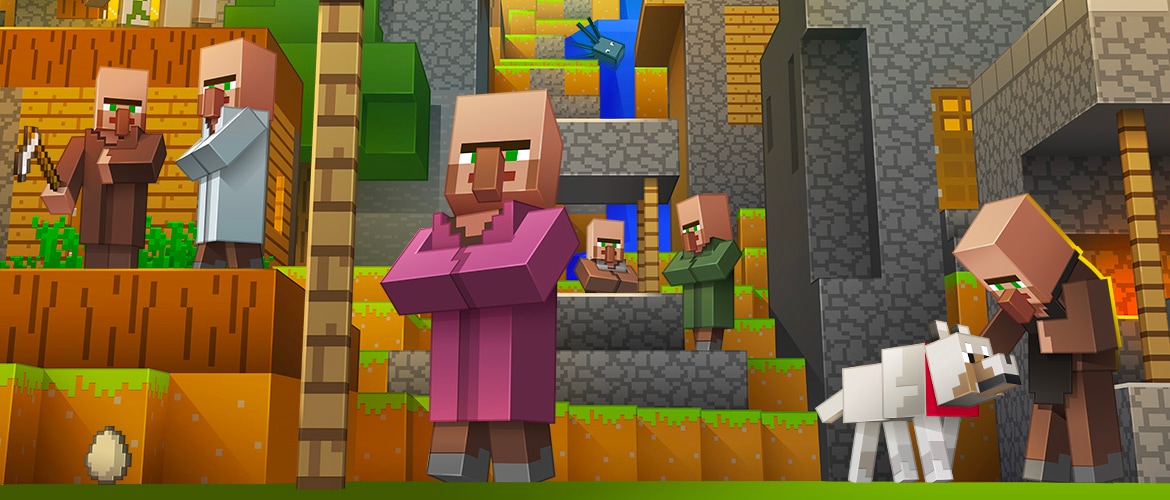
On November 12, 2026, Mojang Studios published the "Minecraft Parents' Guide," a resource aimed at parents who are wondering whether and how to introduce their kids to Minecraft. The guide walks through, step by step, how to buy the game, set up a child's account, turn on parental controls and safely use multiplayer, while also explaining what Minecraft actually is and why more than 150 million people around the world play it.
What the game is and why it appeals to whole families
Minecraft is a sandbox game where players build and explore endless worlds made of blocks. Mojang describes it as a place where "stairs can lead to the sky, a Water Bucket will break your fall, and a chicken jockey might chase you home." The game offers two basic modes: Creative, which gives unlimited blocks and the ability to fly, and Survival, where you have to gather resources, build shelter and defend yourself against hostile mobs, especially at night.
The guide points out that the Minecraft Marketplace lets you buy ready-made worlds and add-ons, including ones based on well-known brands like Bluey, Star Wars or SpongeBob, as well as educational collections. Mojang highlights this as one of the game's key features: every player decides how they want to play, which means younger and older kids can enjoy themselves in the same world in their own way. Parents new to the game can also find an overview of the basics of building and survival in our guides.
PEGI 7 and ESRB Everyone 10+: is Minecraft scary?
Minecraft carries a recommended rating of PEGI 7 and ESRB Everyone 10+. According to the guide, the game contains no blood or graphic violence, weapons are mostly medieval (swords, spears, no firearms), and defeated mobs simply vanish in a puff of smoke, dropping items and experience points. Mojang notes that hostile mobs such as Zombies, Skeletons and Creepers only appear in Survival mode and can be turned off completely.
For the youngest players, the guide recommends setting the difficulty to Peaceful: the child can then build, explore and interact with animals and villagers without any risk of encountering anything scary. Mojang acknowledges that some situations, like the hiss of an approaching Creeper or the groans of a Zombie heard in a cave, may unsettle younger children, but the game doesn't rely on jump scares or overly frightening scenes.
Child accounts and parental controls
To set up an account for a child, a parent needs their own adult Microsoft account, to which the child's account is linked within a Microsoft family group. According to Mojang, the parent is then the sole manager of the child's account, and only adult accounts can change family settings. Child accounts have extra safeguards turned on by default.
- Online multiplayer and chat are disabled by default on child accounts
- Parents can enable them in the Xbox account settings and choose who can communicate with the child (for example, only friends)
- To manage settings, Mojang recommends the Xbox Family Settings app on a phone
- Full parental controls can also be edited on the Xbox account settings website
Safe multiplayer: Realms, partner servers and the official list
According to Mojang, playing together is one of the best things about Minecraft, so the guide outlines several safe paths into multiplayer. Realms are private, invite-only servers fully controlled by the parent in terms of who gets to play. Bedrock Edition also offers Partner Servers, which implement chat filters and in-game violation reporting, and for those looking for private third-party servers, Mojang recommends using the official server list to make sure those servers are required to follow safety rules. You can find an overview of the different multiplayer options, including community servers, in our Minecraft servers section.
Mojang also encourages parents to talk with their kids about never sharing personal information online, using mute, block and report features, and telling an adult about any uncomfortable situations. The Marketplace offers a free CyberSafe collection with materials and guides for having conversations about online safety.
Bedrock, Java or Education: which version to choose
The guide also explains the differences between the game's versions. Bedrock Edition is the most popular version and Mojang's recommendation for young players, since Marketplace content is created by the studio's partners in line with the PEGI 7 and ESRB Everyone 10+ ratings. Java Edition, the original version of the game, is more open to third-party mods, but Mojang explicitly notes that these mods aren't affiliated with the studio and some content may not be suitable for the youngest players, so it recommends parental supervision. On computers, both editions are sold together as Minecraft: Java & Bedrock Edition, available through the publisher's website, the Microsoft Store, or as part of PC Game Pass Premium, among other options. You can find a full list of ways to download the PC version in our Java Edition download section, and the console and mobile version in our Bedrock Edition download section.
The third version is Minecraft Education, built for classroom use, featuring a library of lessons, in-game coding and accessibility features. It's available through a Microsoft 365 Education subscription, as well as for families, after-school programs and non-profit organizations. The game always requires purchase on the appropriate platform; Mojang does not offer any free or pirated way to access it.
"We hope you'll start your Minecraft adventure with enthusiasm. We're happy you're here, and we wish you and your family a calm, safe journey. We can't wait to see what you create together" the Minecraft team wrote at the end of the guide.
